Custom fields
Custom fields for your CRM. The AI fills in the call fields.
You decide what you want to know about leads, contacts, appointments and calls: number of dentists, budget, objection, callback time. The AI fills the call documentation fields from the conversation after you hang up. Then you filter lists and call history by exactly those values.
No setup fee · cancel anytime
- 14
- field types, from short text to user picker
- 4
- areas: lead, contact, appointment and call documentation
- 61,000+
- field values filled in by the AI from calls since March 2026
- 1.5M+
- dials have run through Coldfire since 2023
Why standard fields aren't enough for cold calling
01
What matters ends up in the notes
“3 dentists, website from 2016, the owner is only in after 3 pm”: as free text it's somewhere. You can't filter, sort or analyze it.
02
Nobody likes typing after a call
Fill in ten fields by hand after every call? By the fifth call they stay empty, and the data is worthless.
03
Every CRM has the wrong fields
A CRM for every industry knows nothing about number of dentists, energy tariffs or branch counts. You need the fields of your market.
Custom fields in one minute
Create a field, make the call, the value is there: a run in the Coldfire demo workspace (German voice-over, English subtitles).
All companies, people and numbers shown are demo data.
How it works
- 1
Create a field
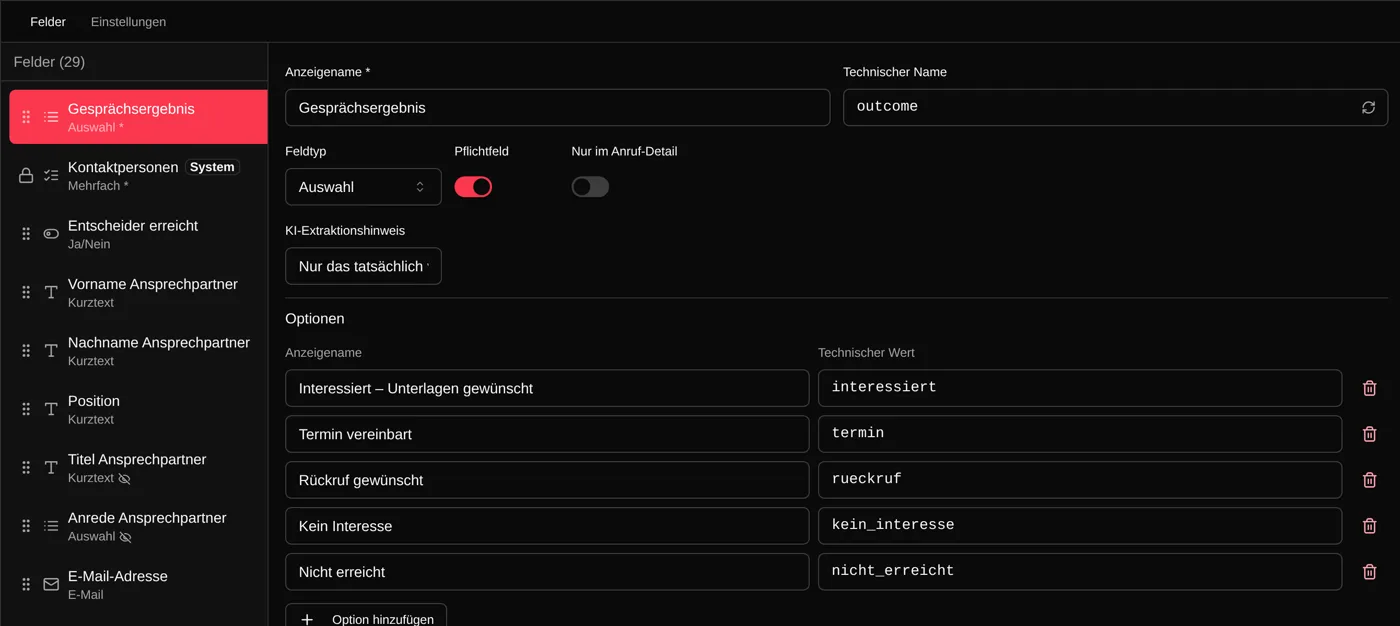
Under Settings → Custom Fields you pick the area, the field type and, for select fields, the options, each with its own color.
- 2
Tell the AI what to look for
You create call fields in the call type. One sentence as an AI hint is enough, for example: number of dentists treating patients at the practice.
- 3
Call
After you hang up, Call Documentator reads the conversation and fills in the fields. You see the values in the call detail and in the lead history.
- 4
Put them to work
A workflow writes the value into a lead field or into the follow-up email. Lead fields are filters in your lists.
What custom fields do for you
The AI fills in the call fields
Every field in a call type has an AI hint that tells Call Documentator what to look for in the conversation. For select fields it only uses your options, for user fields it picks a colleague from your team. Required fields it may not leave empty.
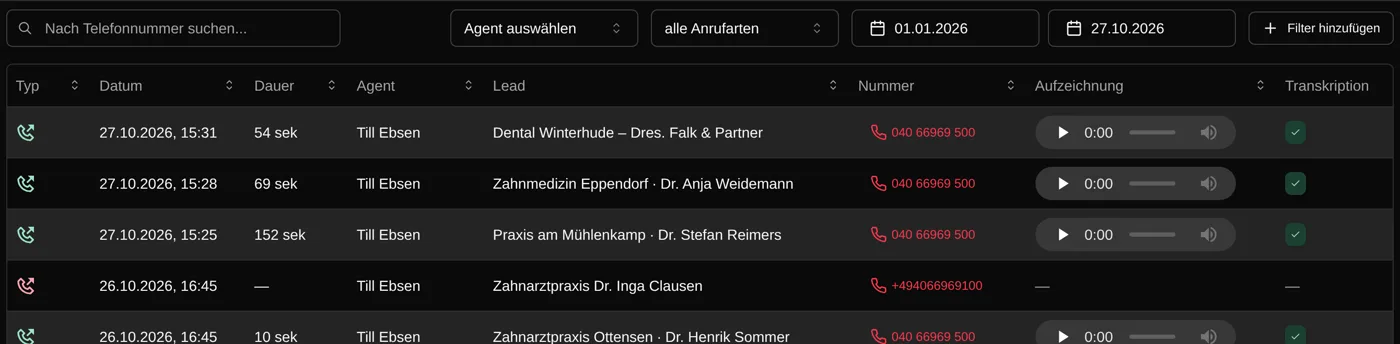
Filters in lists, call history and dashboards
Your own lead and contact fields are filters and sort keys in your lists, date-and-time fields down to the hour. In call history you filter by call fields, and in dashboards you narrow widgets by custom fields.
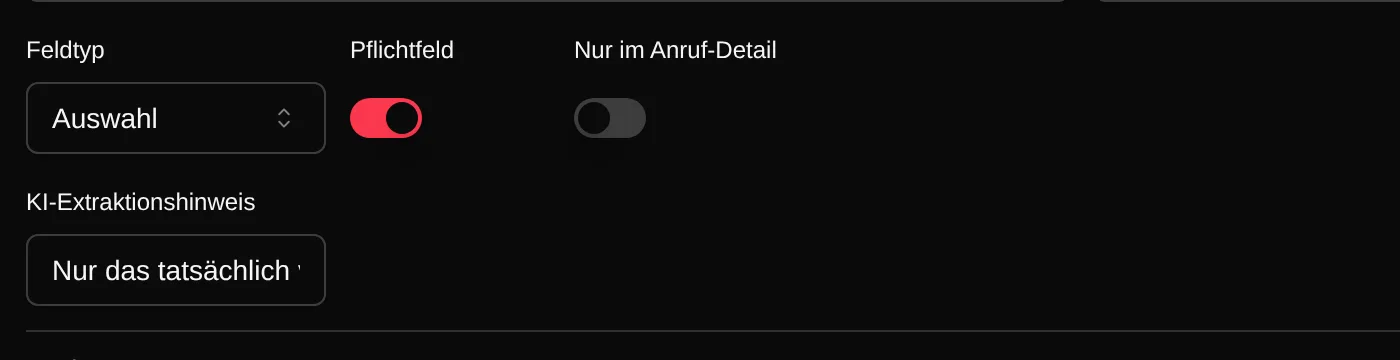
Call detail only
Helper fields for analysis, such as buying signals or “close attempt made”, can be hidden from the lead history. They stay visible in the call detail, and the lead page stays clean.
Fields for leads, contacts, appointments and calls
Each area has its own field set: number of dentists on the lead, department on the contact, meeting type on the appointment, objection in the call documentation. Custom activity types like “Proposal sent” bring their own fields, optionally prefilled with the lead's data.
14 field types
Short text, long text, number, currency, yes/no, date, date and time, select, multi-select, email, phone, URL, user and JSON. Select options get a color from 19 presets or your own. Important fields you mark as required.
Right on the lead page
Lead fields sit in the “Custom fields” block and can be edited right there. The most important ones go into the lead's header as quick fields. Contact fields sit on the contact, appointment fields in the appointment dialog.
Workflows work with the values
A workflow branches on the call outcome, writes a value into a lead field or puts it into the follow-up email. That's how “website outdated” ends up in the email to the practice without anyone typing.
Values from outside
In the CSV import you map columns to your lead fields. Through the API you read field definitions and set values on leads and contacts. The Close import brings your fields over from Close, values included.
Who it's for
Team leads
You decide what every call has to deliver: decision-maker reached, objection, next step. Without your team typing after each call.
Setters and openers
You call, the AI fills in the call fields. Whatever you want to maintain on the lead yourself, you change right in the header.
Agencies and sales outsourcers
Every client needs different data. With their own call types and fields, each campaign gets its own call documentation.
Notes field or custom fields
| Free-text note | With custom fields | |
|---|---|---|
| Number of dentists, budget, objection | somewhere in the text | one field each, with the right type |
| Filling in | by hand after the call | the AI, from the conversation |
| List of all practices with more than 3 dentists | not possible | one filter rule |
| Topics in the follow-up email | copy them over | the workflow fills them in |
| Analysis | read the notes | filters in call history and dashboards |
| Data from Close or CSV | type it again | mapped during import |
Questions about custom fields
Try Coldfire free for 14 days.
Import your leads, connect your phone line, make the first call. Cancel anytime.
