Appointments & Booking Pages
Appointment scheduling right inside the sales call. Or your contact books by link.
You book the meeting while your contact is still on the phone — into free slots from your team's calendars. If someone wants documents first, you send a link to your booking page. Coldfire handles the confirmation, the meeting link and the reminder.
No setup fee · cancel anytime
- 2
- calendar providers: Google and Outlook, several accounts per person
- 3
- rules for who gets the meeting: priority, rotation, workload
- 5
- emails per appointment type, each one can be switched off
- 24 h
- before the meeting the reminder goes out, adjustable
Where meetings get lost in cold calling
01
Scheduling by email
“Does Tuesday work?” — “Thursday would be better.” Days pass before the meeting is set. Meanwhile the lead goes cold or talks to someone else.
02
Who actually has time?
The caller can't see colleagues' calendars. They book blind, and the meeting clashes with another one. Or one person gets every meeting and the next gets none.
03
Forgotten meetings
No meeting link, no reminder, no easy way to cancel. The contact doesn't show up, and you only notice in the empty call.
Appointments and booking pages in one minute
Create an appointment type, book during the call, send a link, let the contact book: a run in the Coldfire demo workspace (German voice-over, English subtitles).
All companies, people and numbers shown are demo data.
How it works
- 1
Create an appointment type
For example “First call”: 30 minutes, online, with the colleagues who hold it. Plus the rule for who gets it.
- 2
Connect calendars
Everyone connects Google or Outlook and sets their bookable hours. Whatever is busy in the calendar, Coldfire doesn't offer.
- 3
Book or send a link
During the call you pick a free slot. If the contact would rather choose, they get a link to your booking page.
- 4
Coldfire does the rest
The meeting sits in the host's calendar. The confirmation with the meeting link goes out in one click, the reminder on its own.
What appointments & booking pages do for you
Appointment types like first call or demo
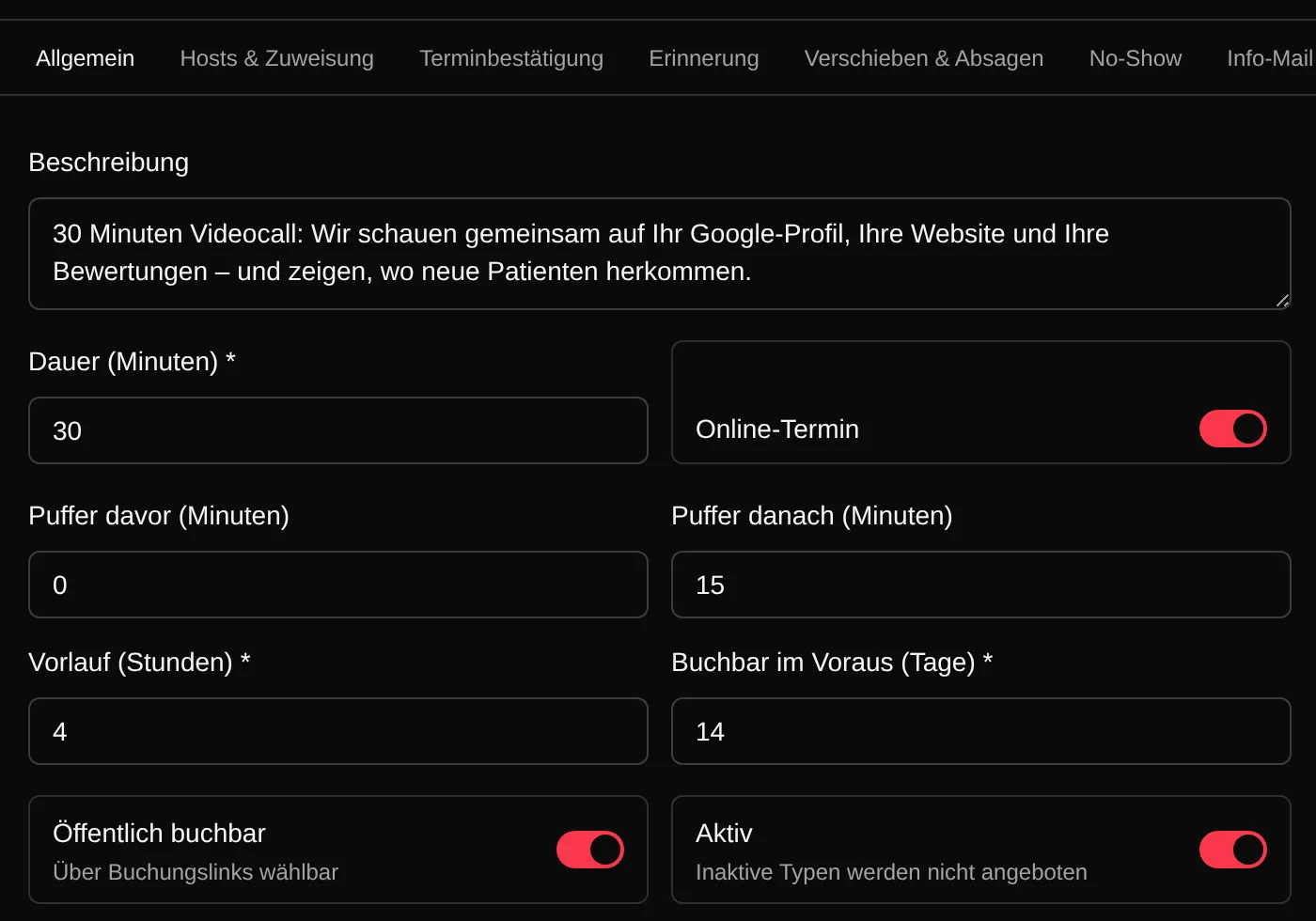
Each appointment type has its duration, online or on site with an address, buffers before and after, a minimum notice (4 hours by default) and a booking window (14 days by default). These rules apply automatically in the appointment dialog and on the booking page.
The right colleague gets the meeting
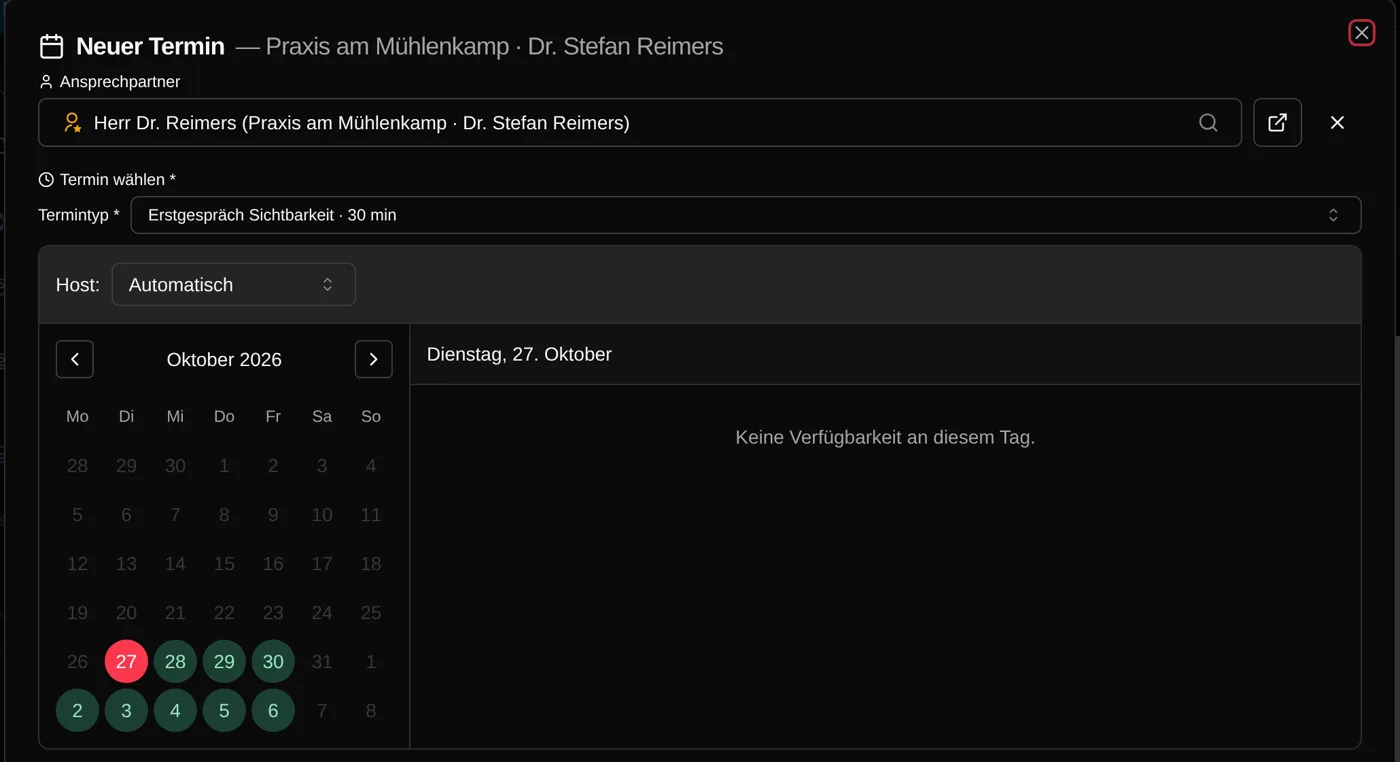
You decide who may hold an appointment type and how Coldfire picks among the free hosts: by priority, in turn (round robin) or whoever has the fewest upcoming meetings. In the dialog you see beforehand who will get it. Or you pick the colleague yourself.
Google and Outlook, several accounts too
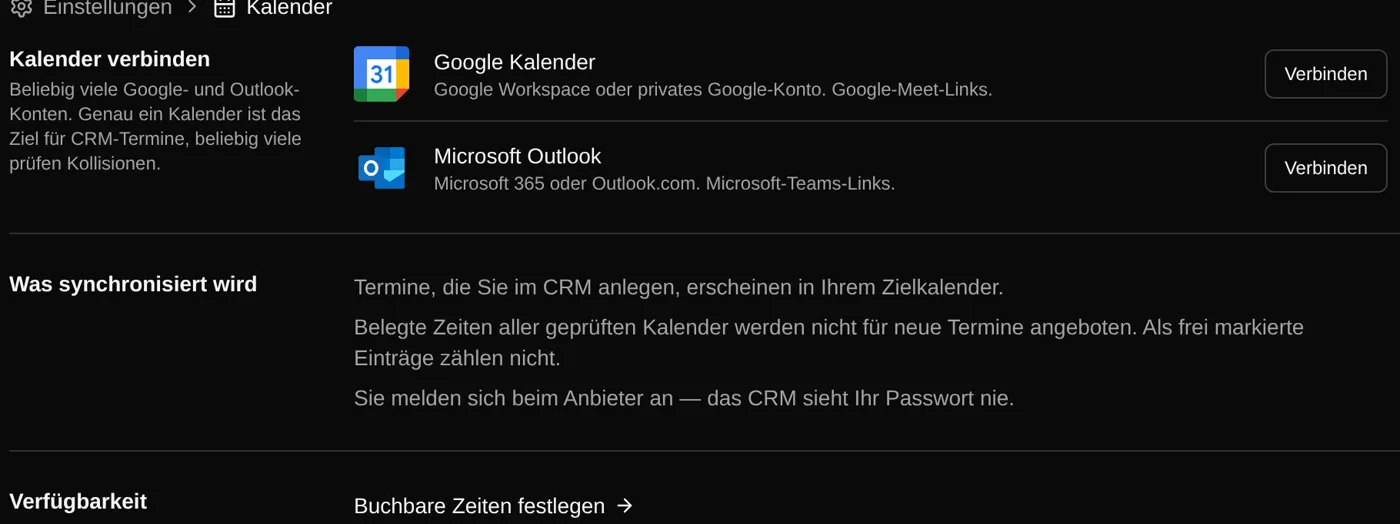
Everyone connects as many Google and Outlook accounts as they have. One calendar is the target for new meetings, the others only check for clashes. Whatever is busy there, Coldfire doesn't offer. Entries marked as free don't count.
Booking pages with your logo
With the “Info-Mail” button on the lead or the workflow step “Create booking link”, your contact gets a personal link. On the page they see your logo, your brand colour and only free slots. They pick a time, book with name and email, and the confirmation goes out right away. The pages run on booking.coldfire-crm.com or on a subdomain of your own domain: add a CNAME, Coldfire checks the DNS record and issues the certificate automatically.
Meet or Teams link on its own
For online meetings Coldfire uses the host's fixed meeting room. Or it creates a Google Meet or Microsoft Teams link for every meeting in the target calendar, depending on the calendar. The link goes straight into the confirmation.
Five emails per appointment type
Confirmation, reminder, email on reschedule, no-show follow-up with a new booking link, and the info email. Each with placeholders like date, time, meeting link and salutation, with attachments and switchable one by one. If you want, they go out from a dedicated sender mailbox.
Reschedule and cancel by link
The emails carry links to reschedule and cancel; you switch each on or off per appointment type. Rescheduling online works once. If the contact cancels, the colleague who set up the meeting gets a task to call back.
Who it's for
Setters and openers
You book the meeting while the contact is still saying yes. Without asking around who on the team has time.
Closers and consultants
Meetings land in your calendar, with meeting link and contact. Nothing gets booked unless you're really free.
Team leads
You decide who holds which meetings and how they're shared: in turn, by priority or by workload.
Solo callers
Appointment types, calendars and booking pages are in the Solo plan too. You're your own host.
Scheduling by email or with Coldfire
| By email and word of mouth | With Coldfire | |
|---|---|---|
| Finding a free slot | proposals back and forth | free slots of every host in the dialog |
| Who holds the meeting | whoever has time | rule: priority, rotation or workload |
| Meeting link | create and copy by hand | Meet or Teams automatically |
| Contact wants to choose | one more email | link to the booking page |
| Reminder | if someone remembers | email before the meeting, 24 hours by default |
| Cancellation | by phone or not at all | by link, with a follow-up task |
| Calendar | enter the meeting twice | in the host's target calendar |
Questions about appointments and booking pages
Try Coldfire free for 14 days.
Import your leads, connect your phone line, make the first call. Cancel anytime.
