Call scripts
Call scripts built for cold calling. The answer to an objection is one key away.
You build your script once: guide, objections, FAQ and facts. During the call it sits right next to you, with the lead's details in the text. Coldfire picks the right script for the list you're calling from. And the / key finds any answer in seconds.
No setup fee · cancel anytime
- 1.5M+
- dials have run through Coldfire since 2023
- 5
- building blocks per script: guide, objections, FAQ, facts, always/never
- 8
- placeholders for CRM data, such as company name and city
- /
- key opens the search for an objection or question during the call
Why scripts often don't help in cold calling
01
The script is in the wrong window
PDF, Word or Notion: while the lead is talking, you're searching another tab. By the time you find the spot, the moment has passed.
02
Objections don't come in order
“Too expensive”, “Just send me something”, “No time”: a script you read top to bottom fails exactly when it matters.
03
Everyone calls with their own version
One has the old file, one has their own notes, one has nothing. What works for one person never reaches the others.
Call scripts in one minute
Build a script, start a list, search an objection: a run in the Coldfire demo workspace (German voice-over, English subtitles).
All companies, people and numbers shown are demo data.
How it works
- 1
Build the script
Under Settings → Phone Scripts you add chapters, objections with answers, frequent questions and facts. Placeholders go in with one click.
- 2
Link it to a call type
In the call type you pick the script and a rule, for example: call started from the list “Zahnärzte Hamburg”.
- 3
Call
When you start the list, Coldfire selects the call type and switches to its script. The practice's name and city are already in the text.
- 4
Objection? Press /
Type a keyword from the objection and Coldfire shows the matching answer. Then you carry on with the guide.
What call scripts do for you
A guide in chapters
Your conversation in phases: opening, qualifying, value, close. During the call you jump to a chapter with one click, and as you scroll Coldfire shows where you are. Format text as bold, italic, a list or a link.
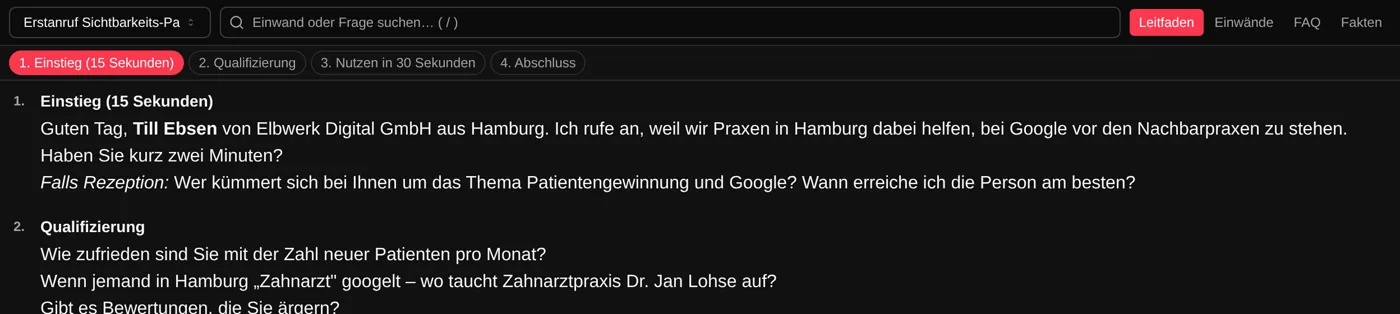
Objections with an answer and a follow-up
Every objection gets an answer and, if you like, a follow-up question to ask next. During the call you expand them with one click. So for “We already have an agency” you have the sentence ready that moves the conversation forward.

The right script by rule
Every call type can bring a script. Rules pick the call type as you dial: by the list you're calling from, by where the call came from (list, follow-up reminder or by hand) or by the lead's open tasks, optionally with a specific tag. The call bar briefly shows which rule matched.

One version for the whole team
Scripts belong to your workspace, not to a file on someone's laptop. Change an answer and the team has it on their next call. On the Team plan, roles decide who can only read scripts and who can change them.

Search with the / key
Press / during the call and the cursor jumps into the search. It looks through objections, FAQ and the guide at once and expands the hit. You don't need to know which tab the answer is in.
Facts and rules always in view
Price, term, start date, references: facts sit as a short list in their own tab. Plus rules under “Always” and “Never”, such as: have them confirm the email address, never promise a Google ranking.
The lead's details in the text
Eight placeholders: company name, city, industry, contact person, phone, website, your name and your company's name. They work in every field of the script, objections and FAQ included. The editor preview shows the text with sample data.
Docked or in its own window
The script sits below the call bar or floats as a window you can move and resize. Whether it opens by itself on every call is up to you, in the call settings. Otherwise you open it with the script icon in the call bar.
Who it's for
Setters and openers
You don't have to know everything by heart. The guide walks you through the call, and the answer to an objection is one key away.
Team leads
You maintain one script for everyone. What worked in a call, you write in as an answer. From the next call on, the whole team uses it.
New hires
Start calling on day one without knowing the whole offer: price, frequent questions and objections are in the call, not in an onboarding binder.
Script as a file or in Coldfire
| PDF or document | With Coldfire | |
|---|---|---|
| Where the script is | in another window | in the call, right below the call bar |
| Answer to an objection | search and scroll | / key, keyword, hit |
| Company name and city | fill them in yourself | already in the text |
| Which script? | find it yourself | picked by the call type's rule |
| Price and terms | from memory or a sticky note | in the Facts tab |
| New answer for the team | send the file again | everyone has it on the next call |
Questions about call scripts
Try Coldfire free for 14 days.
Import your leads, connect your phone line, make the first call. Cancel anytime.
